
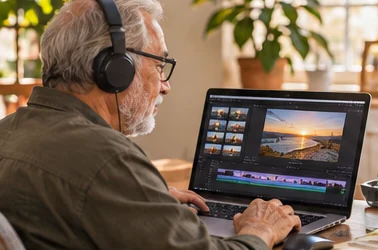
You can make videos without showing your face by putting the viewer’s attention on a task instead. A screen recording shows the clicks. A hands-only demonstration shows what happens on a table. A few well-chosen slides can explain an idea before the viewer tries it. Choose one method and one result for your first video.
Make videos without showing your face: pick a format that serves the lesson
A screen recording captures the display while you work. Use it when the viewer needs to see a menu, a button, or a change in a document. A hands-only video fits a craft, cooking, or notebook exercise. Slides help when you need to show a short comparison or introduce unfamiliar terms.
Imagine you want to teach a neighbor how to save a checklist as a PDF. A recording of your screen can show the menu and the result in less time than a long introduction. Use a sample file and make the buttons large enough to see. A spoken explanation can help, but you can also use clear on-screen instructions and captions if the demonstration calls for them.
Write a small script you can follow
Use three lines: what the viewer will do, the actions that get them there, and what a finished result looks like. In a PDF example, you might say “Open the sample checklist. Choose Export, then PDF. Open the new file to make sure the page looks the way you expected.” Adjust the button names to the app you are demonstrating.
Read the script aloud and act out the steps before you record. Leave a pause while a menu opens. If a step needs a sentence of background, say it just before the viewer needs it. An example that reaches one complete result gives the viewer a clear reason to stay through the end.
Prepare a screen you are comfortable sharing
Turn off notifications and open only the window you intend to show. Use made-up names, dates, and addresses in your examples. Check the rest of the display for account names, browser tabs, bookmarks, and downloads. If your recorder can capture one window, choose that option and verify it in a short practice clip.
- Open a sample file and enlarge the text or browser controls.
- Choose the screen or window to record and check whether your microphone is on.
- Capture ten seconds showing the first click, then stop.
- Play the test at phone size and listen for background noise.
- Adjust what you need and record one complete run of the short lesson.
If your device includes a screen recorder, try it before making an account elsewhere. Write down where the clip saves. Keep an unedited copy, then trim any long silence or restarts from a separate copy. A small correction may be easier to fix by recording just that part again.
Try a text-to-video tool with a sample
A text-to-video tool builds scenes from a script. InVideo and Pictory offer different ways to start from text, with plan and export details that can change. Use a short sample and inspect every scene before relying on the result. Check for irrelevant pictures, pronunciation errors, and text too small to read.
If the draft uses pictures, music, or a synthetic voice, review the license and the destination’s publishing rules for those assets. A tool may allow previewing an item before a particular plan permits its publication. Keep the project file and the source of anything you add yourself.
Add captions and check them carefully
Captions put speech and relevant sounds into words on the screen. They can make a lesson easier to follow with the sound off or in a noisy room. YouTube provides caption controls and instructions for adding or editing them. If you start with automatic captions, correct tool names, addresses, and numbers by hand.
Check that the captions don’t cover the button the viewer is trying to find. Read them at normal playback speed. If a line is too long, shorten the spoken sentence or adjust the caption timing. Give the viewer a moment to follow each click. Use the video description to include a short written outline or link to the matching guide.
Publish and give the viewer one next step
Pick a title that states the task, such as “Save a Checklist as a PDF.” Use a simple preview image showing the result. In the description, say which app or example the lesson uses, especially if controls differ on phones or between app versions. If you include an affiliate recommendation, follow disclosure guidance where viewers can see it.
Use a private or unlisted test if your platform offers one. Check how the clip plays on your usual phone and a larger screen. Try the link in the description. When you share it publicly, point viewers toward one relevant action, such as opening the checklist or trying the sample project.
Common mistakes to fix in your second recording
If the tutorial feels slow, look at the opening. Start by showing the finished result and what the viewer will be able to do. Save your backstory for the description or an About page. A reader can learn more about you after they decide the tutorial solves their problem.
If the steps feel rushed, place a pause after each important click. Show the change on screen before you move on. If your hands or cursor block the result, record the part again from a better angle. If captions are hard to follow, shorten your sentences and check the timing on a small device.
If you later notice private details in a published clip, review the platform’s options for removing the video or replacing the material. Keep personal information out of future examples by preparing a dedicated sample file and recording window. Put that check in your recording notes alongside sound and caption review.
A sample one-minute storyboard
A storyboard is a quick plan showing what happens in each part of a video. For a checklist demonstration, begin with the finished PDF on screen. Spend the first few seconds saying what the viewer will learn. Next show the editable document and point to the export menu. Leave the menu visible long enough for someone to read it. Select PDF, open the saved file, and show how to check that it looks right.
Give each scene one job. For the export scene, the useful detail is the menu and the selected format. Avoid layering a long caption over the same area. Move your cursor out of the way when it is not showing an action. If you can add a highlight without hiding the label, use it just for the click that matters.
Record a rough version before you decide what to improve. Watch it once without sound. Could you still tell which button to press? Listen once without looking. Do the instructions say which menu to open and what result to expect? If either check fails, replace the problem section before touching the rest.
Try a second example in a different format, such as a hands-only view of arranging papers in a folder. Use enough light to see the labels and keep the camera still. Keep private names out of the example. Decide which format made the work clearer and save a short note with your recording preferences.
Ask one viewer to pause and repeat the example. Find out which step needed another look, and adjust the timing there. Put a direct link to the written instructions beside the video when you publish. That gives the viewer a way to read one step again without searching for the exact second in the recording.
After publishing, keep a copy of the recording, its captions, and the description in the same folder. That makes it easier to correct a spoken term, change a link, or share the written instructions later.
Questions beginners ask
Do I have to use my voice?
You can use on-screen instructions, captions, or approved narration. Pick the option that gives the viewer enough time and information to follow the task.
Can I use any music under my video?
Use music you have permission to publish and check any conditions, including attribution. YouTube Help explains common copyright issues.
How long should my first video be?
Give it enough time to show one useful task from start to finish. A simple menu demonstration may need only a minute or two.
What if my screen buttons are hard to read?
Increase the zoom, reduce the area you record, or show the important button in a close-up. Check the exported clip at phone size.
Can I reuse a clip in another place?
Check the permissions for the pictures, music, and other assets as well as the new destination’s rules. Save a clean copy you can caption or trim again.